Operator guide
For inspectors / operators — the people who run the live video inspections. Your job is simple: pick up the next beneficiary, verify their situation on a short video call, capture the evidence, and finish. The platform handles the scheduling, the queue, and the paperwork.
Contents
- What you see
- Your queue (Smart Queue)
- Your calendar
- Getting a beneficiary on the call
- Running the inspection
- Signatures
- Finishing & the report
1. What you see
As an operator your view is scoped to your own work. The sidebar shows only what you need — your Dashboard, Campaigns you're assigned to, Beneficiaries, Calendar, Inspections, and Support. Admin areas (members, billing, roles, integrations) are hidden — that's expected.
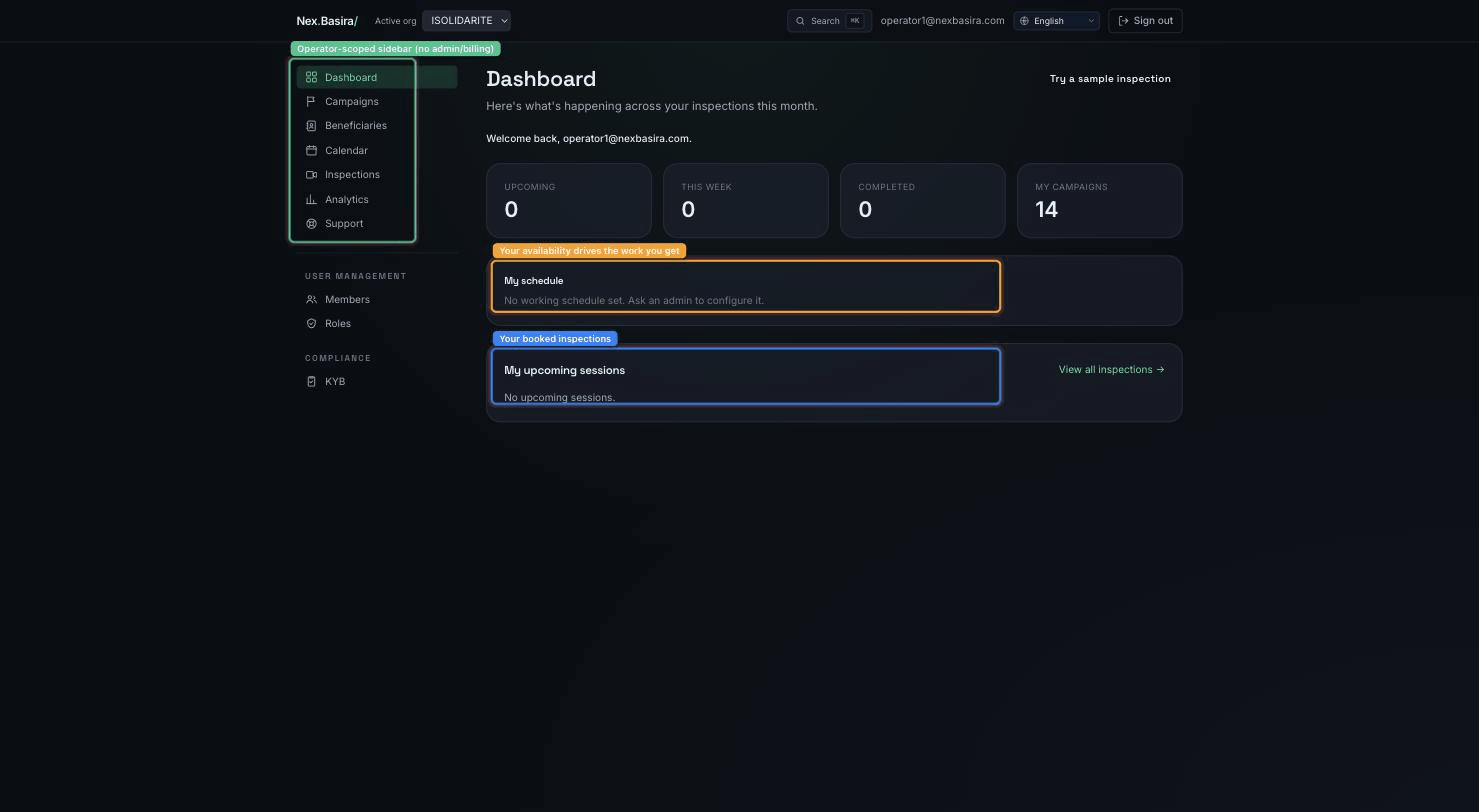
Your availability (set by your admin as a weekly schedule in your own time zone) decides when the system routes work to you: Available when you're on shift, Off shift outside your hours. If you're marked No schedule, ask your admin to set your hours or you won't be offered automatic work.
2. Your queue (Smart Queue)
For AI-assisted campaigns, the Smart Queue ranks the beneficiaries who are ready to be called and hands you the next best one — you don't pick manually.
- Open the queue and press Next (or "Take next") to be assigned the highest-priority eligible beneficiary and jump straight into contacting them.
- The queue respects capacity (it won't overload you) and eligibility (skips do-not-call, wrong-number, already-handled, and out-of-hours contacts).
- Ranking favors people who've been waiting, are on-site/ready, or are more likely to convert — so you always work the most valuable contact first.
3. Your calendar
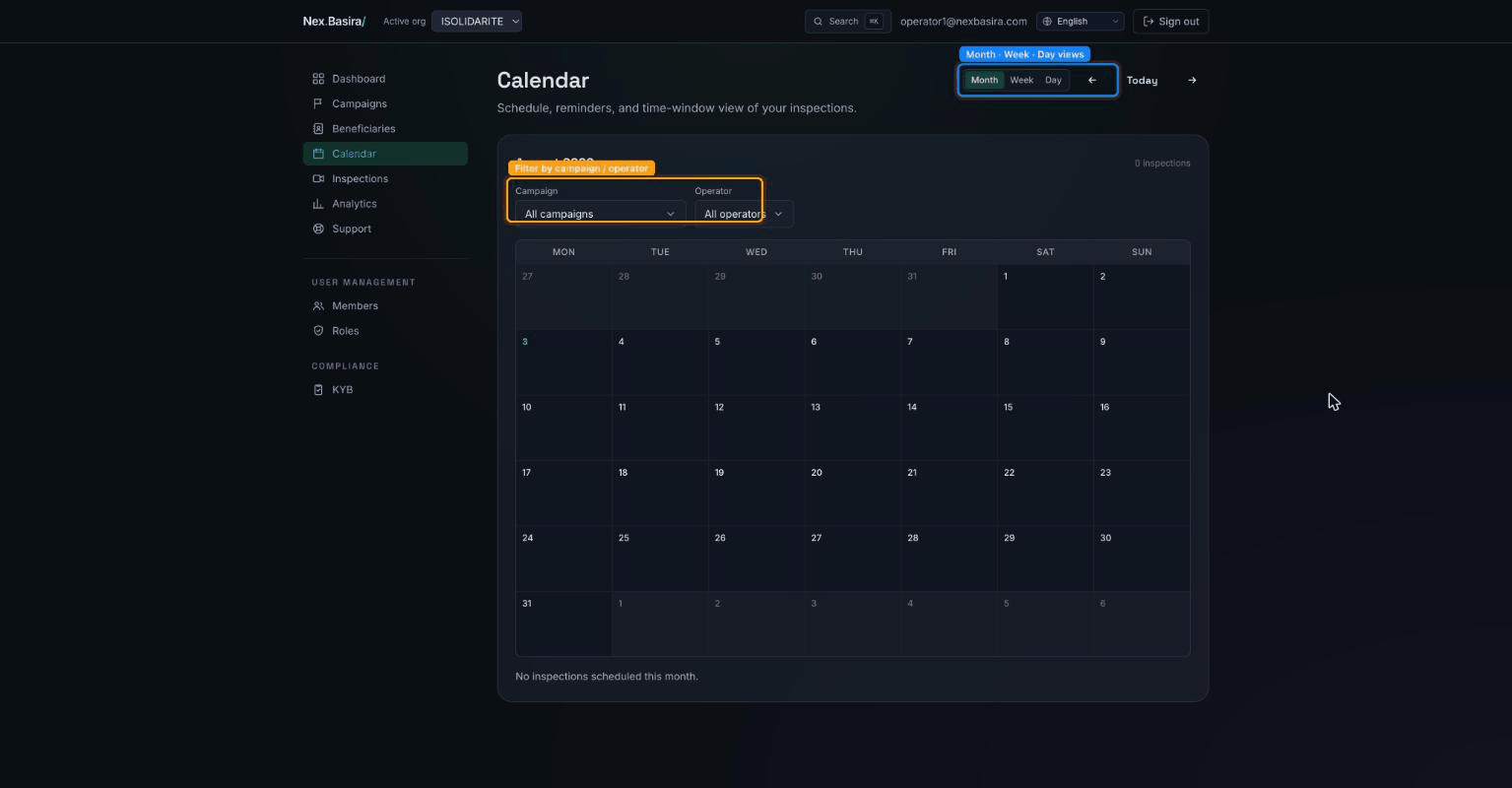
The Calendar shows your booked inspections. Switch between Month, Week, and Day views; each entry links to the beneficiary and, when it's time, to the live room. Filter by campaign or operator.
4. Getting a beneficiary on the call
Three ways a beneficiary reaches your screen:
- Scheduled — at the appointment time, open the inspection from your calendar or the Inspections list and start the room.
- They just joined — when a beneficiary opens their video link, a live presence board lights up and you get an alert (email/SMS). Pick them up with Call now so they don't wait.
- Call now (immediate) — from a campaign's beneficiaries, start an inspection on the spot.
Remember: an answered phone call (by the AI agent) is not a handoff to you. The beneficiary must open the secure video link and allow camera/mic — then you join and run the check.
5. Running the inspection
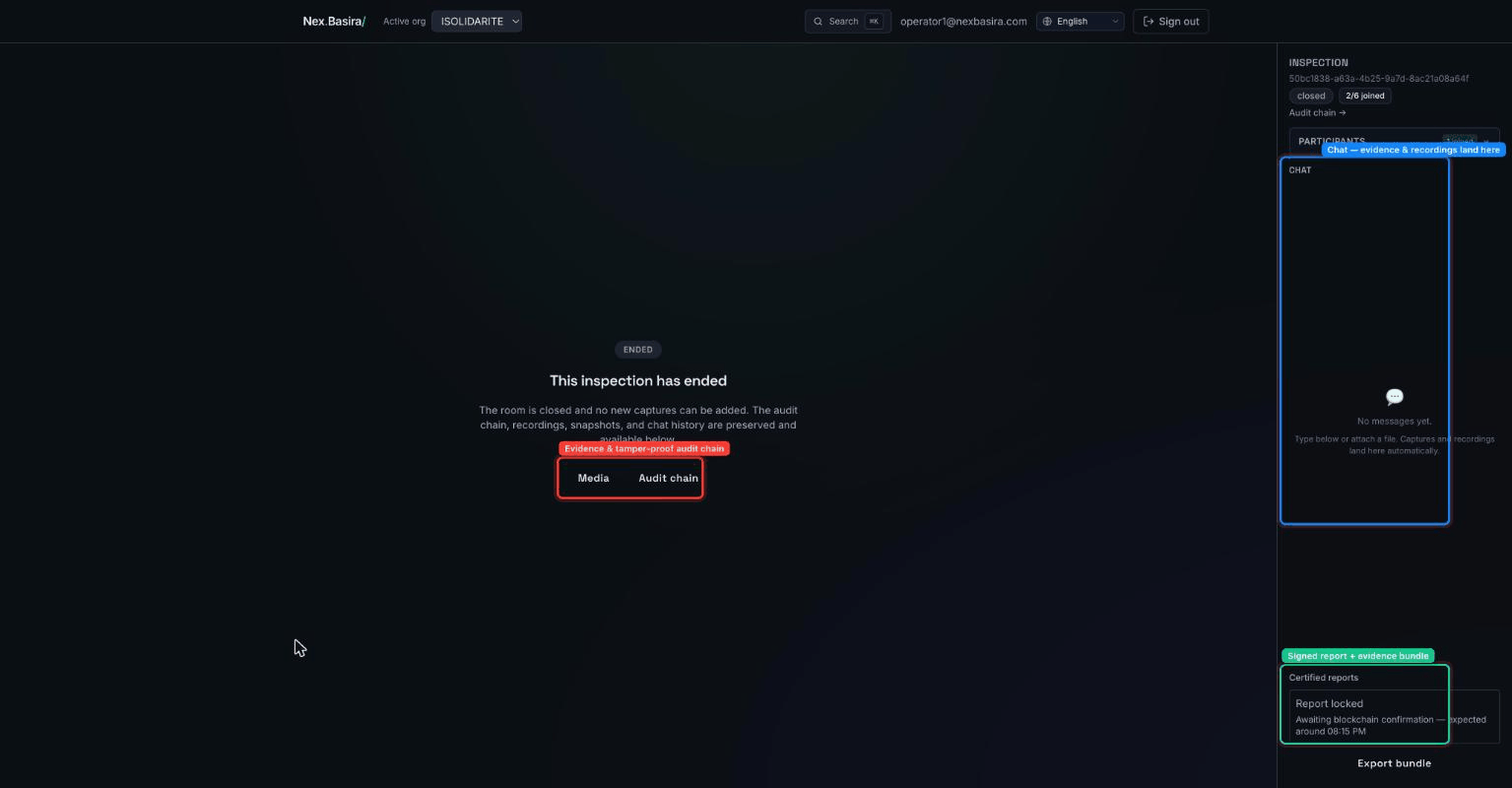
The live room is Meet-style: video of the beneficiary, with your tools on the side. The chat is your main workspace — instructions, links, and a running record all live there.
Your evidence tools:
- Snapshot — grab a still from the video; it's stored as timestamped evidence (and you can immediately open the annotator to circle/mark it).
- Whiteboard / annotator — draw over a frame to point things out.
- Recording — the call is recorded for the file.
- Location — the beneficiary's GPS is captured for the report's on-site cross-check.
- Questions (Q&A) — record answers to the campaign's questionnaire.
Everything you capture is hashed and anchored automatically — you don't manage any of that.
6. Signatures
When a document needs signing (e.g. an attestation), start the signature flow from the chat. The signer gets a secure link, signs, and the signed PDF comes back into the chat as a signature card — no email juggling, and the whole thing is timestamped.
7. Finishing & the report
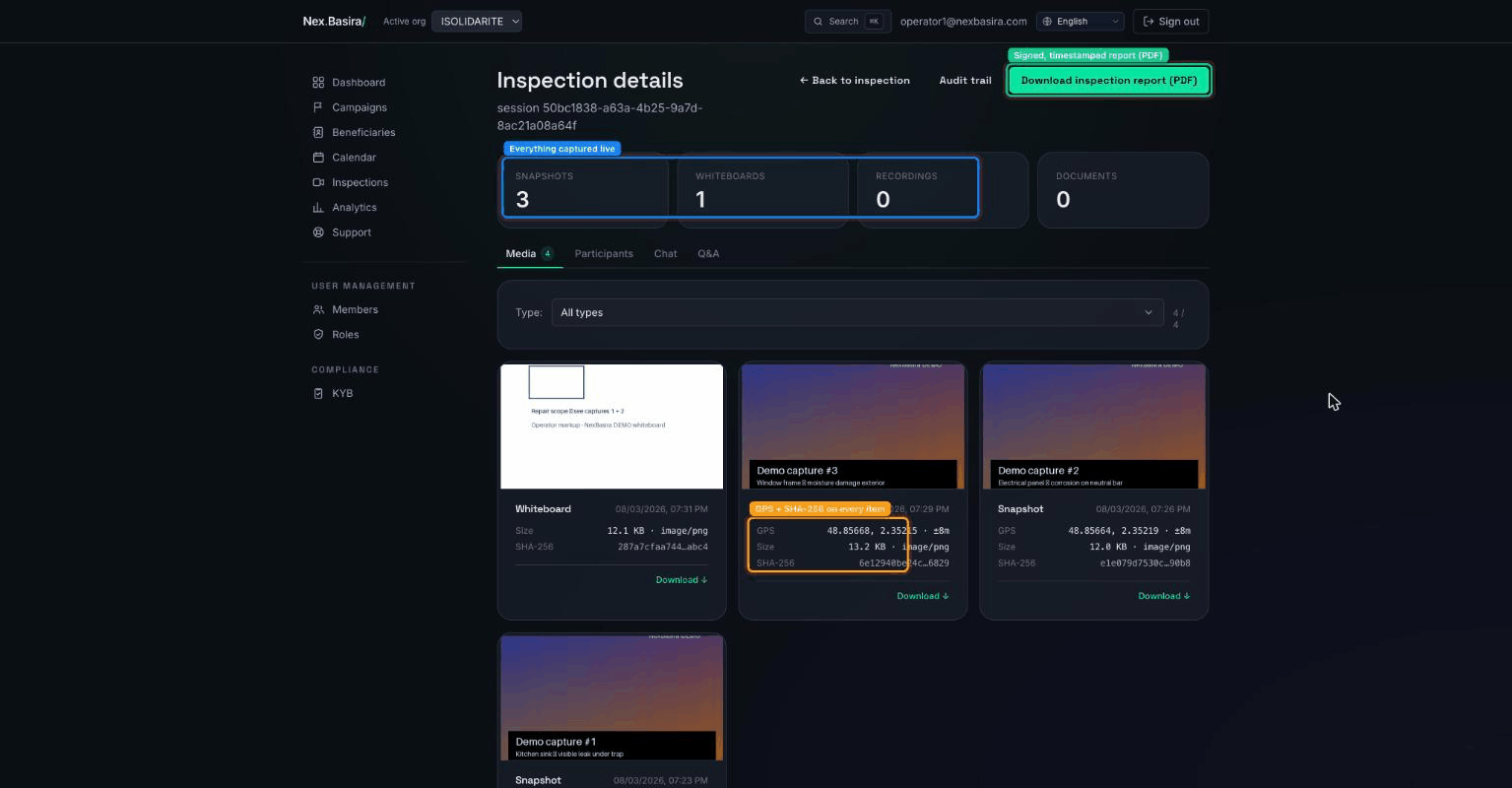
When the verification is done, close the inspection. Everything you captured — snapshots, recording, documents, answers — lands on the inspection's Media page, each item with its SHA-256 hash, and the signed, timestamped report (PDF) can be downloaded there. Once evidence is anchored, the file is tamper-proof.
See also the Organization guide for how campaigns, beneficiaries and schedules are set up for you.